Mysql 설치
brew install mysql
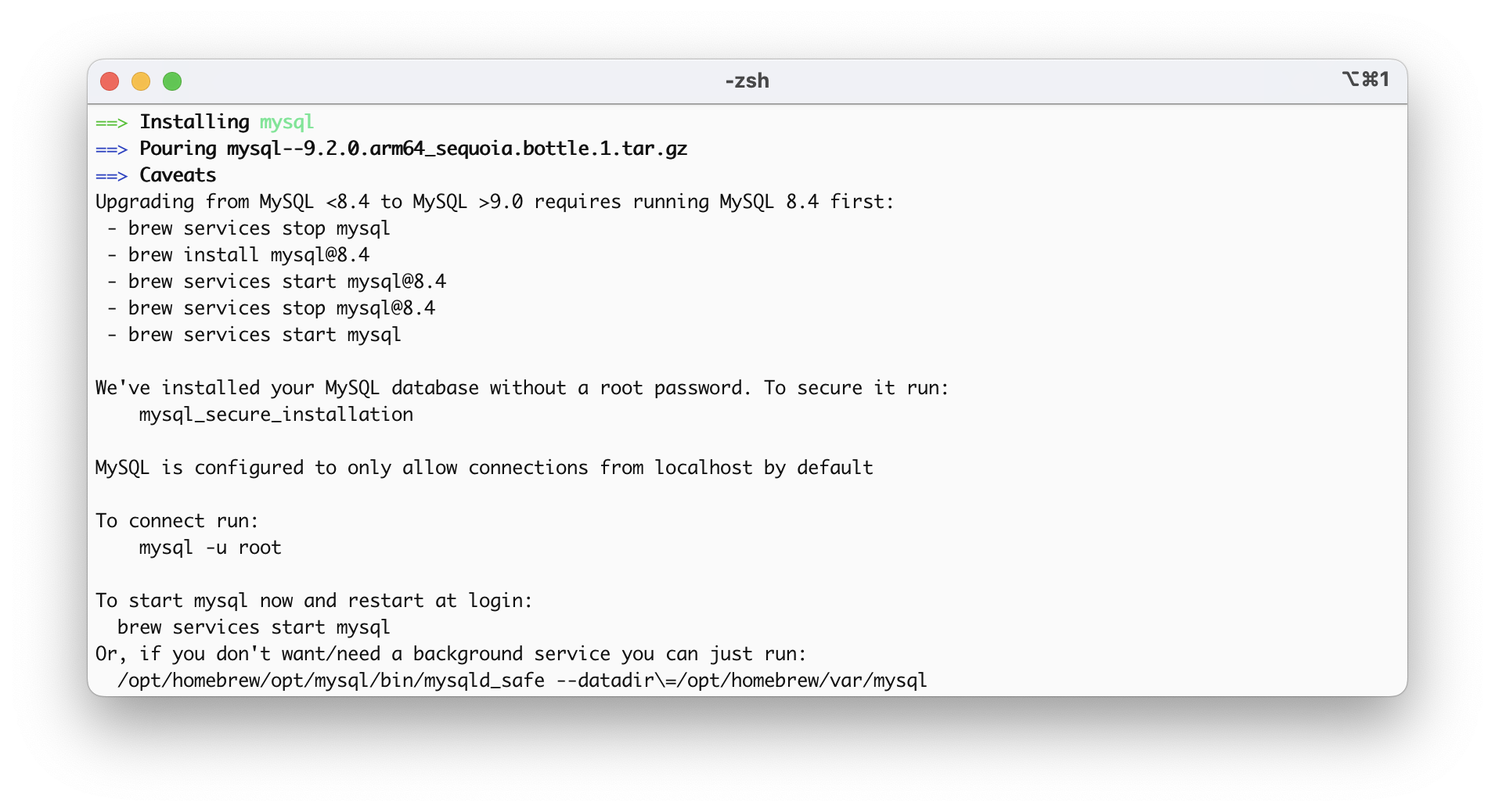
비밀번호 설정
mysql_secure_installation
비밀번호 설정에 문제가 생겨서 비밀번호 복잡도 낮추기
SET GLOBAL validate_password.policy=LOW;SHOW VARIABLES LIKE 'validate_password%';
진짜로 보안 설정 완료하기

1. 비밀번호 복잡도 검사
VALIDATE PASSWORD COMPONENT can be used to test passwords
and improve security. It checks the strength of password
and allows the users to set only those passwords which are
secure enough.
Would you like to setup VALIDATE PASSWORD component?
Press y|Y for Yes, any other key for No
비밀번호 복잡도 검사를 적용할 것인지 설정하는 과정입니다. 복잡도 검사를 적용하게 된다면 다음과 같은 비밀번호 조건이 붙습니다.
- 최소 8자리 이상의 비밀번호
- 최소 1개의 영문자
- 최소 1개의 특수문자
- 최소 1개의 숫자
간단하게 비밀번호를 설정해 두실 분들은 No로 진행하면 됩니다.
이후 설정할 비밀번호 입력이 나오는데 입력해도 보이지 않는 것이 정상입니다.
2. 익명의 사용자 삭제
By default, a MySQL installation has an anonymous user,
allowing anyone to log into MySQL without having to have
a user account created for them. This is intended only for
testing, and to make the installation go a bit smoother.
You should remove them before moving into a production
environment.
Remove anonymous users? (Press y|Y for Yes, any other key for No)
익명의 사용자를 삭제할 것인지 물어봅니다.
설치 과정에서 테스트와 설치를 좀 더 원활하게 진행하기 위해 생성되었던 계정인데 Yes로 삭제해 줍니다.

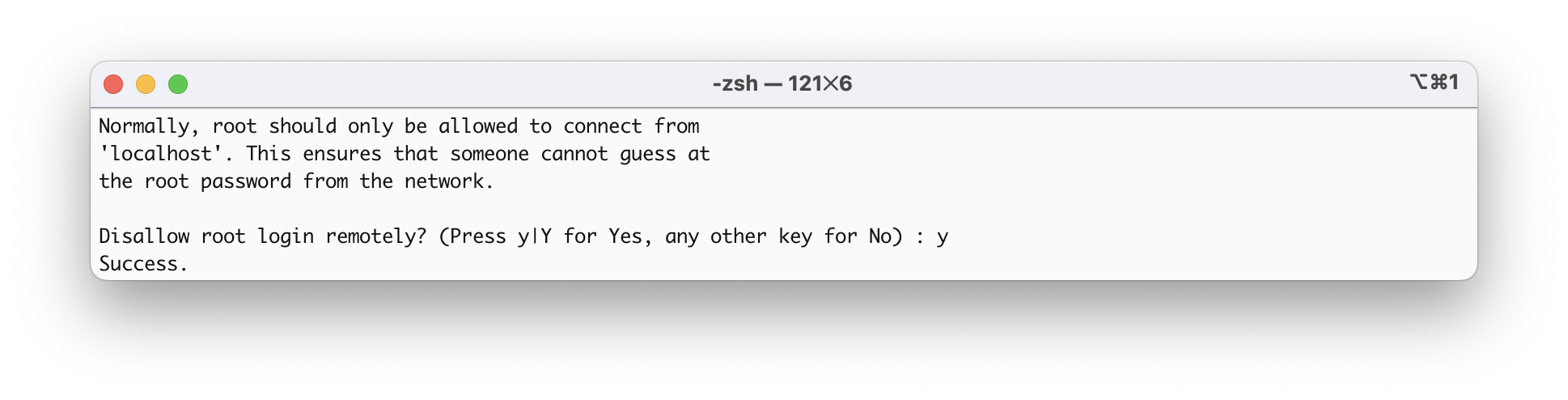
3. root 계정 원격 접속 차단
Normally, root should only be allowed to connect from
'localhost'. This ensures that someone cannot guess at
the root password from the network.
Disallow root login remotely? (Press y|Y for Yes, any other key for No)
root 계정을 원격(외부)에서의 접속을 차단할 것인지 묻습니다. 일반적인 경우라면 root 계정은 원격 접속은 차단해 두는 것이 권장됩니다. Yes로 차단을 하여 주시면 됩니다. 원격작업이 필요한 경우는 root 말고 db 계정을 따로 생성하여 원격 권한을 주는 것이 가장 바람직합니다.
4. 테스트 데이터베이스 삭제
By default, MySQL comes with a database named 'test' that
anyone can access. This is also intended only for testing,
and should be removed before moving into a production
environment.
Remove test database and access to it? (Press y|Y for Yes, any other key for No)
테스트 데이터베이스를 삭제할 것인지 물어봅니다.
필요 없으니 과감히 Yes로 버려주셔도 됩니다.

5. 현재까지의 변경사항 즉시 적용
Reloading the privilege tables will ensure that all changes
made so far will take effect immediately.
Reload privilege tables now? (Press y|Y for Yes, any other key for No)
Yes를 통해 변경사항을 즉시 적용시켜 줍니다.
비밀번호로 mysql 실행하기
mysql -u root -p
mysql 버전 확인
irene@Irene-MacBook ~ % mysql --version
mysql 접속
mysql -u root -p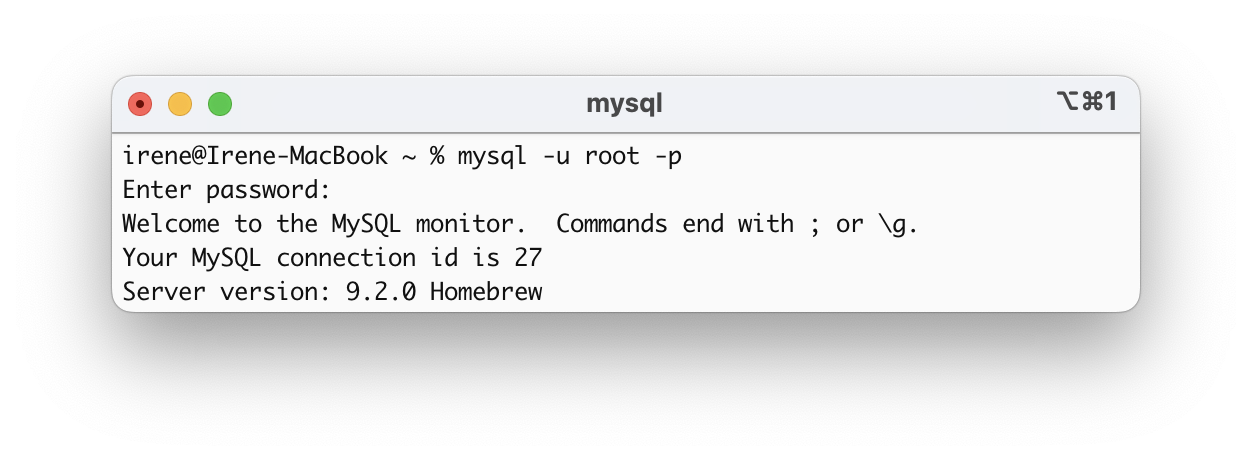
mysql 조작하기
create database productdb;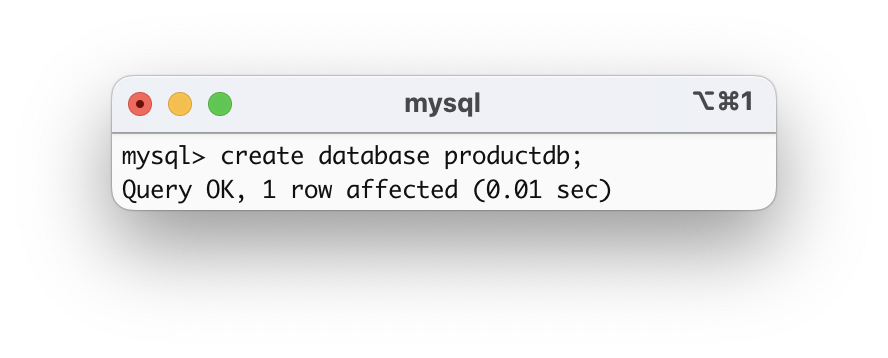
show databases;
use productdb;mysql> create table products(
-> pid int not null auto_increment primary key,
-> name varchar(50),
-> price int );
Query OK, 0 rows affected (0.02 sec)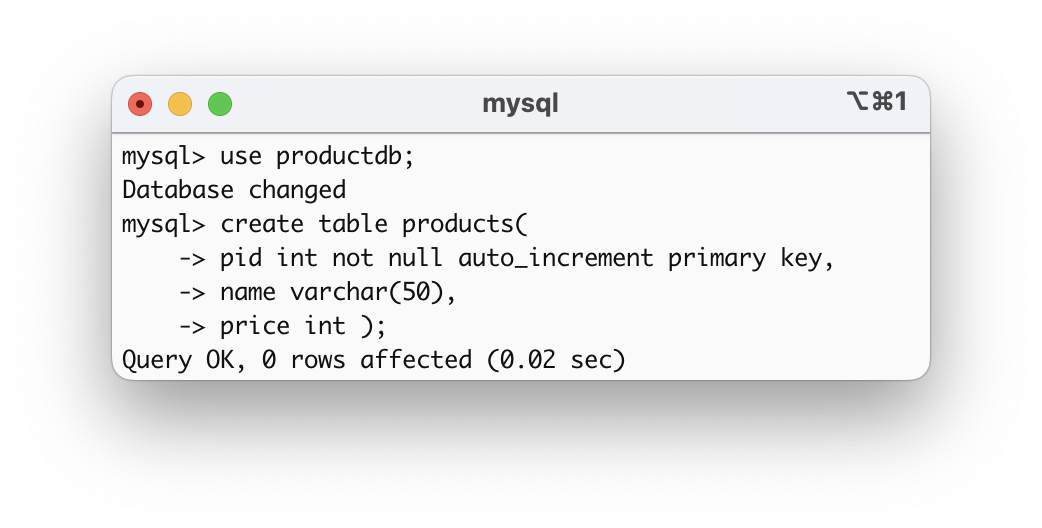
show tables;
insert into products values (1, 'apple', 5);
insert into products values (2, 'banana', 3);
insert into products values (3, 'pear', 4);
select *from products;
select *from products where name='apple';

'운영체제 > MacOS' 카테고리의 다른 글
| [맥북 M2] Mysql Workbench 설치하기 (0) | 2025.03.10 |
|---|---|
| [맥북 M2] tomcat 설치 및 환경세팅 (0) | 2025.03.07 |

